Showing posts with label Chrome. Show all posts

Thursday, January 30, 2020

Simple tip for tidying up your browser

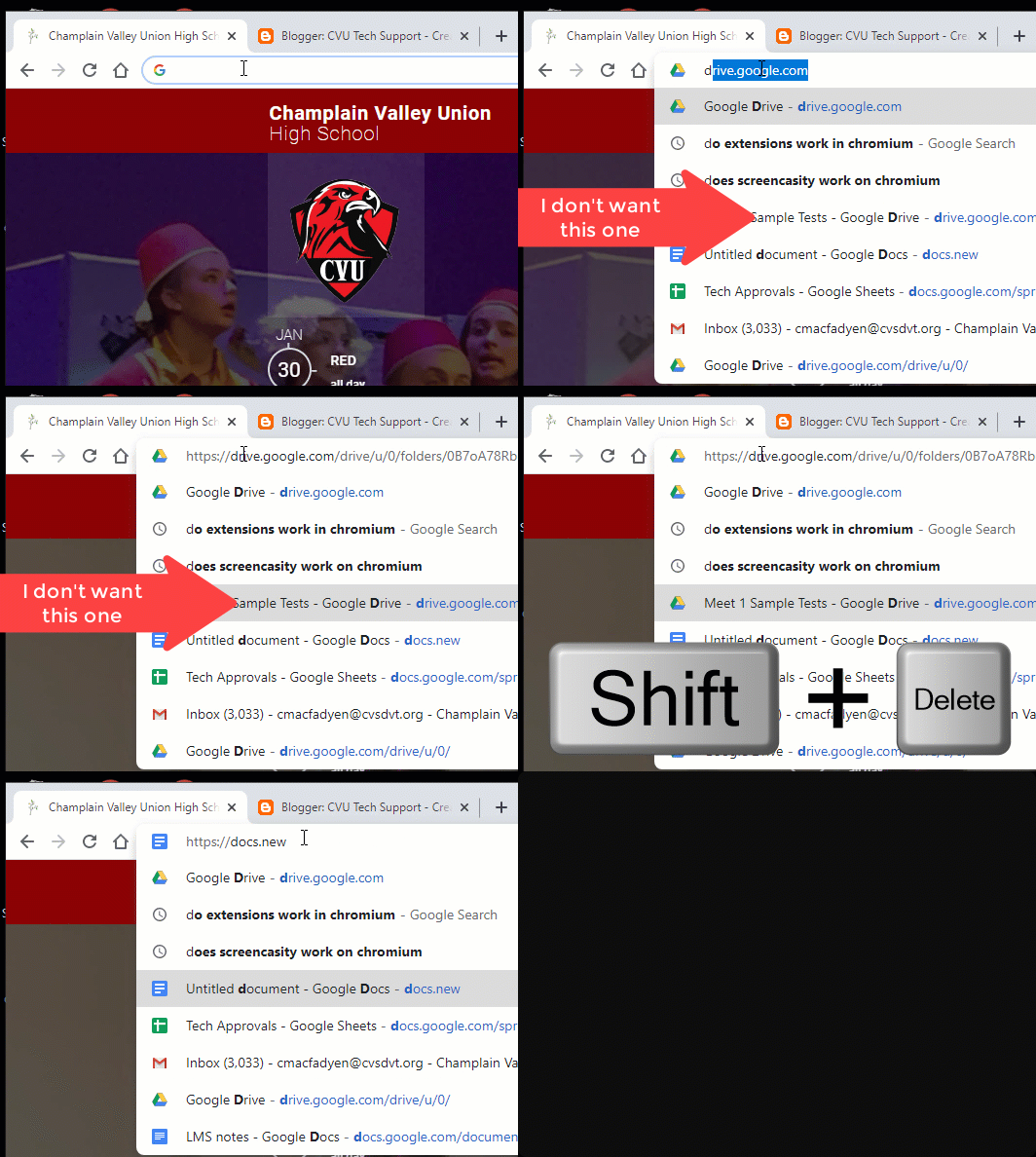
Do you ever get annoyed by some of the suggestions Chrome (or another browser) makes when you start to enter a URL?  Of course, it's helpful to have commonly visited sites appear, but I've found that sometimes I want to remove items from the list. 

Here's how it's done (at least in Chrome and Firefox):

  • Start to type an address (URL)
  • As suggestions pop up, arrow down to the one you want to remove, then hit Shift-Delete.


I made a gif to demonstrate:


Friday, November 23, 2018

Helpful site for Chromebooks and more

In my post-Thanksgiving web browsing, I came upon Schooled in Tech, a helpful site with lots of tips for using Chromebooks and Google tools.  Some of these I've shared myself previously, but this is a nice "go-to" spot for Chromebook use.

Learn how to use your Chromebook for video-conferencing, how to export your data, useful keyboard shortcuts, and more.  There are also tips on using Microsoft Office 365.

Tuesday, April 18, 2017

Using Google Cast

I've posted before about Google Cast for Education, but since it's come up for a few people lately, I thought I'd share both some written instructions and a step-by-step video on how to use it.

As a reminder, Google Cast allows you to project what's on your (or a student's) Chromebook through the projector in the classroom.

Here's the video


and the written instructions.

Wednesday, March 29, 2017

Print Friendly & PDF extension

I came across the Print Friendly & PDF Chrome extension today,  This extension allows you to print (or save as a PDF) a de-cluttered version of a web site.  Essentially, it strips out ads, navigation buttons and any content that you don't want printed.


For example, here's a page from CNN as it appears on the web:

And here it is after applying the Print Friendly & PDF extension:


Here's a video that explains how to install and use the extension:


Tuesday, February 14, 2017

Solving Chromebook/Chrome problems

I just helped a student who was having a problem with the Screencastify extension in Chrome. The solution ended up being the same thing that's worked over and over for others-- and it's a simple one...

...update Chrome!

Many apps and extensions require Chrome to be up to date.  Updating Chrome is simple to do.

Here's how:

On your Chromebook, Chrome should update automatically, but you need to restart the Chromebook in order for the update to apply. The cue for this is when you see an up-arrow icon in your status area (down in the lower right where you see your profile pic/icon).  Click that arrow, then "Restart to update." Here are Google's instructions for this.

On other computers (or on your Chromebook), you can update Chrome manually by clicking on the 3 vertical dots icon on the upper right, then Settings, then About.  In particular, if you notice that those dots have changed color, that's an indication that Chrome is out of date.  Again, here are instructions from Google.

Wednesday, September 28, 2016

Chromebook workshops

I'm doing a workshop next week called

So you have a Chromebook. Now what?


If you have questions about how a Chromebook differs from a traditional laptop, how apps and extensions work on Chromebooks, or what keyboard shortcuts are available on a Chromebook, come check it out!

We will be in room 118 (note-- not the library lab) for the first half of each block on Thursday, 10/6 and Friday 10/7.

Saturday, March 12, 2016

Chrome Music Lab

Here's an interesting new site that lets students experiment with musical ideas-- it's called the Chrome Music Lab. It is interesting how much you can do these days right in a browser.  This page links to a groups of activities that let students (and everyone else) try creating rhythms and melodies (without the use of standard musical notation), explore pitches that strings of different lengths make, and more.  Give it a try!

Saturday, December 14, 2013

Google Workshop December, 2013

If you weren't able to attend the "What's New With Google" workshop this week, I've created a
screencast that summarizes it.  I couldn't keep it down to my usual length (it's about 12 minutes), so I've created an index that will allow you to fast-forward, if desired.

0:00 Downloading attachments in GMail (understanding the icon that now appears)
2:03 Doctopus-- a script that automates sharing a template with students and keeping track of their work.  Dave E has used this successfully with his students.
4:15 Chrome- doing more with Google's Chrome broswer
5:06 Chrome- using apps and extensions in Chrome
8:18 Chrome Store- adding apps and extensions to Chrome


I hope it's helpful.  Let me know if I can support you in trying out any of these ideas.

Update 12/17: Here's a nice selection of educational Chrome apps I found today-- http://google.apps.sparcc.org/resources/web-apps
Monday, November 11, 2013

Vermont Fest 2013

As always, the Vermont Fest educational technology conference had a lot to offer this year and I've come away with some great ideas to share.

Some take-aways:
  • Q: How can we share students' digital work like we do physical artifacts (posters, 3-D objects, etc.)?  A:  Make a poster with a QR code on it.  Scanning the QR code with a smart phone brings up the digital work.  Great idea for parent-teacher conference time-- let parents see what their kids are doing in the digital realm!
  • Lots of schools going 1-to-1 in some form or another.  Wifi is key.  Some schools are also looking at BYOD ("bring your own device") models.
  • Video is powerful.  Give kids a decent-quality camera and ask them to tell a story or learn about and report on their community.  Students who may not love writing can surprise you when given the chance to show learning in a different way. 
  • It's not the tool-- it's the learning.  We know that, of course.  But it always helps to be reminded.

Interested in what you missed? Most presenters (including yours truly) shared their resources here.

 I did a presentation entitled "How not to ruin a presentation with technology" (with help from the art deparment!) that I'd love to come into your classes and present.

OK, my notes (I'd be happy to share more if these are too cryptic.  Use the link above to see the actual resources):

REEL History
Matt Henchen
Civics teacher, Harwood Union
Kids need to be media savvy
Two Stories
Tanner’s story—his 10-year old son.  Hates to write. Tech honors multiple intelligences.
Use of voxpop = ask a diverse set of people the same question.
Kids speak through media.
Powerful video of students interviewing a homeless man.
Power of the media to bring people together who wouldn’t otherwise.
Place-based learning.   What are local places you could use?
iPhone 5s has slow-motion camera; use earbuds as unidirectrional mics

Augmented Reality
Tarrant Institute
Similar to putting up QR codes, but the "code" is the object itself.
Aurasma-- iOS app for creating augmented reality experiences. Recognizes the image and displays resources overlayed.
Science Fair idea-- physical object with additional digital components.

Tech tips top 40
Common Sense media has added Graphite for searching.
A Fair(y) Use Tail-  uses Disney clips.
Get Creative.


BYOD
Gregory Connors- Rutland City Schools
Students bring their own devices and register them.
Complements 1-to-1. Not an expectation.
Info here.

Chrome Ninja
Jean Campbell, MMU HS
Showed extensions and apps
Nice extensions-
Send by Gmail
ScreenCapture
Diigo, etc.

Nice apps-
Loupe photo collage
WeVideo
LucidChart are all added to their Google Drive.
picMonkey

App development
Lucie Delabriere
Creativisy is not enough—need grit!
Make it social.
Programmer vs programmed-- kids should be "makers."
Buzztouch demo (tool for creating mobile apps-- iOS and Android)
Xcode for mac
Eclipse for android

When 1-2-1 and BYOD Merge

Luis Bango—Woodstock MS and HS

385 students in HS
Many devices on the network
350 school-issued netbooks on campus
iPad labs (20 in world languages)
6 technology interns
Spent a year “doing HW” to prepare for 1-2-1.
MS teachers helped the HS teachers get ready when 1-2-1 came to 9th grade.
Machines don’t go home.  Charge them during lunch.  Gets through the day.
Why don’t they go home? Couldn’t pay warranty.  Wanted to be sure they were there every day.  Didn’t want them in kids’ backpacks (sports teams).
Used Digital Wish chart for planning 1-2-1.