
Each year, Google hosts a contest for K-12 students to create a "Doodle" for their homepage. As Google describes them, "Doodles are the fun, surprising, and sometimes spontaneous changes that are made to the Google logo to celebrate holidays, anniversaries, and the lives of famous artists, pioneers, and scientists." Today's doodle, for example, "celebrates avant-garde Chilean poet and writer Vicente Huidobro on his 127th birthday."
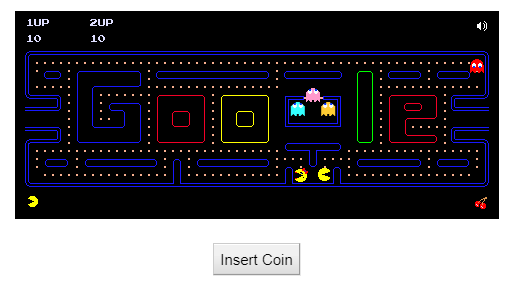
One of the most famous Google Doodles was a fully functional PacMan game
The theme for this year's student contest is "I show kindness by..." Interested students can enter by March 13th. All the information is at https://doodles.google.com/d4g
Showing posts with label google. Show all posts
Friday, January 10, 2020
Thursday, August 29, 2019
Simplifying web pages for easier reading
...to this:
Here's a 30-second screencast showing how it works:
All CVSD students already have Read & Write installed. Adults can add the extension, then see me for how to get a premium account for free.
Labels:
accessibility,
google,
reading
Monday, April 8, 2019
Annotating PDFs using Google Read & Write
Are you and your students already using Google Read & Write? If not, please check it out-- it has tools that all students can benefit from. In fact, as I posted recently, I sometimes use it just to have text read to me to give my eyes a break.
I just learned that there is now a new feature-- adding both freehand drawings and shapes to annotate PDFs. Take a look at this intro video:
This makes a great tool even more helpful. Please let me know if you'd like me to present it to your students.
I just learned that there is now a new feature-- adding both freehand drawings and shapes to annotate PDFs. Take a look at this intro video:
This makes a great tool even more helpful. Please let me know if you'd like me to present it to your students.
Labels:
accessibility,
annotation,
google
Thursday, February 21, 2019
Read and Write for Google
Have you used Read and Write for Google lately? Were you aware that all students at CVSD have premium accounts and that all teachers can get one, too?
Read and Write for Google is a UDL (Universal Design for Learning) tool. Here are some features (copied from their web site).
Another great feature is vocabulary lists -- Read and Write will take words you've highlighted in a document and generate a vocabulary list, which you can then edit.
Finally, speaking of the highlighting tools, you can highlight in four different colors, then combine your highlights (by color) into a new document.
Read and Write for Google is a UDL (Universal Design for Learning) tool. Here are some features (copied from their web site).
- Hear web pages and documents read aloud to improve reading comprehension, with choice of natural voices
- Understand unfamiliar words with text and picture dictionaries
- Develop writing skills with word prediction and a grammar, spelling and confusable words checker
- Support independent student research with valuable study skills tools
- Offers bilingual support for a growing number of languages and more.
Another great feature is vocabulary lists -- Read and Write will take words you've highlighted in a document and generate a vocabulary list, which you can then edit.
Finally, speaking of the highlighting tools, you can highlight in four different colors, then combine your highlights (by color) into a new document.
So, if you haven't used it in a while (or ever), why not give it a try? I'd love to help.
Labels:
accessibility,
extensions,
google,
speech to text,
text to speech,
udl,
voice to text
Thursday, January 17, 2019
Doodle for Google contest
Ever wonder where Google gets their "Doodles" (the graphics that play on the Google logo) from? Well, sometimes it's from students. Once a year, Google holds a contest for students in grades K-12. This year's theme is "When I grow up, I hope..."
Why not share this with your students and give them a shot? There are categories for grade levels 8-9 and 10-12. Their are great prizes, including college scholarships and a visit to Google headquarters.
Friday, November 23, 2018
Helpful site for Chromebooks and more
In my post-Thanksgiving web browsing, I came upon Schooled in Tech, a helpful site with lots of tips for using Chromebooks and Google tools. Some of these I've shared myself previously, but this is a nice "go-to" spot for Chromebook use.
Learn how to use your Chromebook for video-conferencing, how to export your data, useful keyboard shortcuts, and more. There are also tips on using Microsoft Office 365.
Labels:
Chrome,
Chromebook,
google,
google docs,
google drive,
microsoft office,
office 365
Tuesday, September 11, 2018
Printed codes for Google
Did you know that there's another way to log into Google when you get the 2-factor authentication request and you don't have your phone or USB drive with you?
You can print a set of codes and keep them with you in your wallet, lanyard, etc. This has bailed me out more than once when I've left my phone somewhere and have needed to log into a new computer.
Here's how, from Google Support:
You can print a set of codes and keep them with you in your wallet, lanyard, etc. This has bailed me out more than once when I've left my phone somewhere and have needed to log into a new computer.
Here's how, from Google Support:
Create and view a set of backup codes
- Go to the 2-Step Verification section of your Google Account.
- Under "Backup codes," select Setup or Show codes.You can print or download your codes.
If you think you backup codes were stolen or if you're running out, select Get new codes. Your old set of backup codes will automatically become inactive.
Thursday, February 1, 2018
Filtering search for recent results
I was just researching activities for Black History Month. I found several results that led to dead links (i.e., pages that no longer exist). Frustrating!
Usually, the reason for dead links is a web page that hasn't been updated in some time. Here's a quick way to avoid those-- filter your search for more pages that have been created or updated more recently.
In Google search, click Tools, Time, then choose how long you want to look back.
Usually, the reason for dead links is a web page that hasn't been updated in some time. Here's a quick way to avoid those-- filter your search for more pages that have been created or updated more recently.
In Google search, click Tools, Time, then choose how long you want to look back.
Thursday, November 17, 2016
Wednesday, November 16, 2016
What's this about G Suite?
In case your were wondering... G suite is the new name for Google Apps (Docs, GMail, Calendar, Drive, etc.). Same tools, new name. Time to add a new tag to the blog!
Labels:
g suite,
google,
google calendar,
google docs,
google drive,
hangout
Tuesday, October 6, 2015
Google Workshop Screencast
For those of you unable to attend the Google Workshops last week, I've put together a screencast of the presentation.
Here's a table of contents so you can skip ahead (that I created using a tool called Videonot.es thanks to Sarah Strack for the tip!):
0:40 Part 1- Using Templates in Google Slides and Docs
3:35 Part 2- Migration to cssu.org-- remaining issues (YouTube, Google Plus and Chrome logins)
4:27 Part 3- Using 3rd-party applications with Google Drive (it's more than Google Docs!)
I'd love to hear any questions or comments or to help you get started or move forward with any of this!
Thanks for reading,
Here's a table of contents so you can skip ahead (that I created using a tool called Videonot.es thanks to Sarah Strack for the tip!):
0:40 Part 1- Using Templates in Google Slides and Docs
3:35 Part 2- Migration to cssu.org-- remaining issues (YouTube, Google Plus and Chrome logins)
4:27 Part 3- Using 3rd-party applications with Google Drive (it's more than Google Docs!)
I'd love to hear any questions or comments or to help you get started or move forward with any of this!
Thanks for reading,
Monday, September 28, 2015
Wednesday, January 21, 2015
What's up with Google Drive, Docs, Sheets, Slides?
Remember when Google Docs became Google Drive? You probably have noticed that there is now both Drive and Docs (and Slides and Sheets). You may have also seen that there are now icons for each of these when in the App Launcher (which pushes Groups down into the "More" category, by the way). To cut through any confusion, here's the logic of it:
Think of Google Drive as a storage location. Just like the G:/ drive here at school or a USB drive that you store files on. Google Drive can store any kind of file-- not just Google Docs. So, you can upload pictures, video, PDF, Word and Powerpoint files, etc. to make them available in the cloud.
Google Docs, Sheets, and Slides (formerly Presentations) are now three separate apps. You can still access and/or create any of these kinds of documents through Drive, if desired. If you use a mobile device (iPad, Android, etc.) you'll notice that there are separate apps there, as well.
I hope that helps. Please let me know if you have any questions!
Google Docs, Sheets, and Slides (formerly Presentations) are now three separate apps. You can still access and/or create any of these kinds of documents through Drive, if desired. If you use a mobile device (iPad, Android, etc.) you'll notice that there are separate apps there, as well.
I hope that helps. Please let me know if you have any questions!
Labels:
apps,
google,
google docs,
google drive,
google sheets,
google slides,
googlepresentation
Wednesday, June 4, 2014
gMath creates graphs in Google Docs
Need to insert a mathematical graph into a Google doc? Now you can, without having to copy and paste. Try the gMath add-on for Google Drive (go to Add-ons...Get add-ons, then search for it) . One limitation is that it only graphs from -10 to 10 in both x and y.
It also has an equation editor, but that requires LaTeX, which is harder than just using the built-in equation editor (Go to Insert..Equation).
Also, there is now the ability to insert graphs into Google spreadsheets and forms, which could be useful to create an assessment.
It also has an equation editor, but that requires LaTeX, which is harder than just using the built-in equation editor (Go to Insert..Equation).
Also, there is now the ability to insert graphs into Google spreadsheets and forms, which could be useful to create an assessment.
Labels:
google,
google docs,
graphing,
math
Tuesday, April 1, 2014
Google Tools for Schools summer courses
Teachers,
Here's another summer opportunity. Google Tools for Schools is taught by local educators who really know their way around Google Apps in the classroom. More info is here.
Labels:
google,
professional development
Saturday, December 14, 2013
Google Workshop December, 2013
If you weren't able to attend the "What's New With Google" workshop this week, I've created a
screencast that summarizes it. I couldn't keep it down to my usual length (it's about 12 minutes), so I've created an index that will allow you to fast-forward, if desired.
0:00 Downloading attachments in GMail (understanding the icon that now appears)
2:03 Doctopus-- a script that automates sharing a template with students and keeping track of their work. Dave E has used this successfully with his students.
4:15 Chrome- doing more with Google's Chrome broswer
5:06 Chrome- using apps and extensions in Chrome
8:18 Chrome Store- adding apps and extensions to Chrome
I hope it's helpful. Let me know if I can support you in trying out any of these ideas.
Update 12/17: Here's a nice selection of educational Chrome apps I found today-- http://google.apps.sparcc.org/resources/web-apps
screencast that summarizes it. I couldn't keep it down to my usual length (it's about 12 minutes), so I've created an index that will allow you to fast-forward, if desired.
0:00 Downloading attachments in GMail (understanding the icon that now appears)
2:03 Doctopus-- a script that automates sharing a template with students and keeping track of their work. Dave E has used this successfully with his students.
4:15 Chrome- doing more with Google's Chrome broswer
5:06 Chrome- using apps and extensions in Chrome
8:18 Chrome Store- adding apps and extensions to Chrome
I hope it's helpful. Let me know if I can support you in trying out any of these ideas.
Update 12/17: Here's a nice selection of educational Chrome apps I found today-- http://google.apps.sparcc.org/resources/web-apps
Labels:
attachments,
Chrome,
doctopus,
Gmail,
google,
google drive,
professional development
Friday, November 1, 2013
New look for the Google bar
Here's a heads-up that there will be a change in how you access other Google apps while using a particular Google app (for example, opening your calendar or Drive while in GMail). Those of you who have personal Google accounts have probably already noticed it. The new look is now coming to Google Apps for Education (what we use at CVU).
Essentially, instead of accessing Calendar, Drive, etc. via the bar across the top...
...there will now be a simpler bar with an icon that looks like a 3 x 3 grid.
Clicking this icon will bring up your other Google apps (note that these are determined by which apps CVU has enabled. The image below is from my personal Google, which has different apps enabled).
I'm sure that when this is rolled out, Google will pop up messages to let you know, but a heads-up never hurts!
Essentially, instead of accessing Calendar, Drive, etc. via the bar across the top...
...there will now be a simpler bar with an icon that looks like a 3 x 3 grid.
Clicking this icon will bring up your other Google apps (note that these are determined by which apps CVU has enabled. The image below is from my personal Google, which has different apps enabled).
I'm sure that when this is rolled out, Google will pop up messages to let you know, but a heads-up never hurts!
Labels:
Gmail,
google,
google docs,
google drive
Sunday, October 13, 2013
Shared folders in Google Drive
Here's a tip that can save you a lot of clicks! If you create a folder in Google Drive and change the sharing/visibility of that folder, any document that you put in that folder will inherit those properties. This can be very useful in the classroom setting. Say, for example, that your students are working in groups on a project. You can create a folder for that group that is shared with all group members. When anyone in the group adds to the folder, the document will be automatically shared will all other group members. Some teachers have gone the route of creating and sharing individual folders for each of their students-- essentially creating a "drop box." This process has even been automated by a tool called GCLassFolders that was developed by a Vermont educator.
Here's the process:
Let me know if I can help you get started with this!
Here's the process:
- In Google Drive, click "Create," then "Folder."
- Name the Folder.
- Hover over the folder name and click the pull-down arrow to the right.
- Choose "Share."
- Share just as you would any Google Doc-- with specific individuals or an entire group.
- Now if you move an existing document, presentation, etc. to that folder (or create a new one within the folder), it will be shared with the same people.
And here is a screencast of the process:
Labels:
collaboration,
folder,
google,
google docs,
google drive,
sharing
Wednesday, October 9, 2013
Google Docs 101
I would also love to help you discover what you and your students can do with Google Apps. Please let me know if you'd like to do a one-on-one session.
Labels:
google,
google docs,
professional development
Thursday, September 26, 2013
Getting better results from Google searches
Have you ever found an image from a Google search that ended up being too small for your presentation? Or an article with too high a reading level?
Next time you do a search, try clicking on the gear icon to the upper right, then clicking Advanced Search.
For image searches, you'll see this:
Next time you do a search, try clicking on the gear icon to the upper right, then clicking Advanced Search.
You will get a host of choices that allow you to narrow by various criteria. For web searches, you'll see this:
Note the ability to filter by reading level, for example.
For image searches, you'll see this:
In this case, the results will be limited to those whose author has allowed re-use.
More information on effective searching is available from our librarians or at the CVU library site.
Subscribe to:
Posts (Atom)