Showing posts with label resources. Show all posts
Wednesday, November 28, 2018
New CVSD Digital Learning Site
Have you checked out the new CVSD site for Digital Learning? We've combined resources for various education tech tools and resources. There is also a page specific for CVU. I will continue adding to that, but you can still search the blog in the meantime.
Labels:
digital citizenship,
professional development,
resources,
techtip,
tools,
web site
Thursday, May 31, 2018
Common Sense Education
I was just reviewing some software that a teacher is investigating for game design and it reminded me of what a valuable resource Common Sense Education is. Common Sense Education is a part of commonsense.org, "... the nation's leading nonprofit organization dedicated to improving the lives of kids and families by providing the trustworthy information, education, and independent voice they need to thrive in the 21st century." These are the same people who bring us Common Sense Media and have excellent resources on digital citizenship that I've written about before.
If you don't have Common Sense bookmarked, I recommend you do so. It's an invaluable resource.
Also, a reminder that you don't need to do all the research yourself. If you're looking for an app, extension, or other software for your classes, please let me help. And if you've found something already that you'd like to use, a reminder to check for it on the Tech Request Approvals (and submit it if it's not already there).
If you don't have Common Sense bookmarked, I recommend you do so. It's an invaluable resource.
Also, a reminder that you don't need to do all the research yourself. If you're looking for an app, extension, or other software for your classes, please let me help. And if you've found something already that you'd like to use, a reminder to check for it on the Tech Request Approvals (and submit it if it's not already there).
Labels:
apps,
digital citizenship,
extensions,
resources
Wednesday, January 14, 2015
Resources for using Diigo in the classroom
Dear teachers and students,
I've updated my guides on getting started with Diigo. These may be found in the Faculty and Staff Moodle and CVU Students Moodle pages, respectively.
Some FAQ:
What is Diigo?
It is an online tool that allows you to bookmark, annotate (add highlighting and notes), and share web pages and PDF files.
Why should I try it?
You can keep all your bookmarks in the cloud (access them from any computer), mark up pages, create groups for collaborative research, and more.
Do I have to use the Chrome browser?
To access your bookmarks, you can use any browser and log in to http://diigo.com. If you want to have the highlighting/annotation tools, you need to use the extension in Chrome.
I've updated my guides on getting started with Diigo. These may be found in the Faculty and Staff Moodle and CVU Students Moodle pages, respectively.
Some FAQ:
What is Diigo?
It is an online tool that allows you to bookmark, annotate (add highlighting and notes), and share web pages and PDF files.
Why should I try it?
You can keep all your bookmarks in the cloud (access them from any computer), mark up pages, create groups for collaborative research, and more.
Do I have to use the Chrome browser?
To access your bookmarks, you can use any browser and log in to http://diigo.com. If you want to have the highlighting/annotation tools, you need to use the extension in Chrome.
Labels:
annotation,
bookmarking,
collaboration,
diigo,
notetaking,
resources
Sunday, September 1, 2013
Moodle 2 Tips
Here are some more tips for using Moodle 2
- Some people who have transferred over lots of resources from Moodle 1 are finding the drag and drop to be irritating when a resource or activity has to be moved a great distance. Here's a work-around. If you turn off JavaScript in your browser*, the drag and drop icon will turn into the up/down arrow icon. This allows you to click on the resource, then click on the destination . Much faster!
- When you create an assignment, you have the choice of on-line text (where students simply write text into the submission box) or file upload. In Moodle 1, these were separate types of activities. In any Moodle 2 assignment, you have the choice of either or both. For example, you may say to students "Either enter your response in the submission box or upload a file containing your response" or "Either paste in the link to your Google Presentation or upload your Powerpoint file."
- There is now a cut-off date for assignments. In the past, teachers struggled with setting due dates for assignments, because once the due date passed, the assignment would either go away (not accepting late submission) or would continue to show up (depending on the setting) as-- for example-- "128 days late." You can now set both a due date and a "cut-off date." Assignments can be submitted up to the cut-off date, and will be marked as late.
*Here's a screencast on how to disable JavaScript...
...and here are the steps (use the Chrome browser for this).
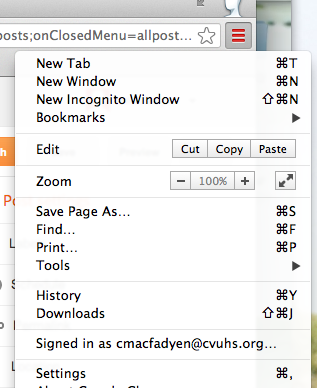
- Click on the three horizontal lines icon (or the wrench icon) on the upper right, then Settings.
- Scroll to the bottom and choose Advanced Settings.
- Under Privacy, click Content, then turn JavaScript off. Leave this tab open so you can come back and turn JavaScript back on when you're done moving things.
- Refresh the Moodle page and you'll see the different move icon (instead of a 4-headed arrow, you'll see up/down arrowheads).
Labels:
assignments,
javascript,
moodle,
moodle2,
moodlecourse,
resources
Wednesday, March 27, 2013
ThingLink
Anne W-S shared a tool that could be great for you and your students. ThingLink lets you upload (or link to) an image, then place different kinds of links that provide information about the picture. Here's an example. Try clicking on the different icons to see the types of links that are available.
Trying to decide which tool to use to comment on images?
VoiceThread works great if you want to be able to record your voice and/or work with multiple images. It is collaborative-- the idea is to get many people talking about/commenting on the images.
ThingLink also allows for collaboration. Rather than including spoken commentary, it is more about creating links. Like VoiceThread, images can be shared with the wider community.
Photostory (installed on all CVU computers) is more like VoiceThread, in that it involves recording a narration. It is not collaborative, however-- typically, it's one person's story. Sharing a PhotoStory requires some more steps, as it is not web-based.
Trying to decide which tool to use to comment on images?
VoiceThread works great if you want to be able to record your voice and/or work with multiple images. It is collaborative-- the idea is to get many people talking about/commenting on the images.
ThingLink also allows for collaboration. Rather than including spoken commentary, it is more about creating links. Like VoiceThread, images can be shared with the wider community.
Photostory (installed on all CVU computers) is more like VoiceThread, in that it involves recording a narration. It is not collaborative, however-- typically, it's one person's story. Sharing a PhotoStory requires some more steps, as it is not web-based.
Labels:
image,
photostory,
resources,
techtip,
ThingLink,
voicethread
Wednesday, October 31, 2012
Classroom Scenarios
(Originally posted 3/7/11)
Need some inspiration/ideas on how to integrate technology and 21st century skills in the classroom? Take a look at these "Classroom Scenarios" that were developed around the new Vermont state technology GE's. They are broken out by grade level- use the links to look at the 9-12 examples. Some of these are units that have actually been done in area classrooms. I'd love to team with people who might want to put something like these in place in their classes.
Labels:
business,
english,
lesson plan,
math,
resources,
science,
socialstudies,
techintegration,
technology,
techtip
Free technology for teachers
What's a good resource for free, web-based resources for my class?
My favorite site is Free Technology for Teachers. It's a blog, written by a middle school teacher, that has quick reviews of lots of tools for all curricular areas. In addition to visiting the site, you can subscribe via RSS or follow on Twitter.
If you happen on something that looks promising and would like me to check it out or support your use of it, please let me know.
(Originally posted 10/10/11)
My favorite site is Free Technology for Teachers. It's a blog, written by a middle school teacher, that has quick reviews of lots of tools for all curricular areas. In addition to visiting the site, you can subscribe via RSS or follow on Twitter.
If you happen on something that looks promising and would like me to check it out or support your use of it, please let me know.
(Originally posted 10/10/11)
Labels:
blog,
free,
resources,
socialstudies,
techintegration,
techtip
GooRu
GOORU
There's a new site that looks promising for classroom resources called GooRu. You can get to it through Google Apps, by opening your GMail, then choosing Gooru under "More." I'd love to know what people think- are these useful resources?
(originally posted 2/10/12)
There's a new site that looks promising for classroom resources called GooRu. You can get to it through Google Apps, by opening your GMail, then choosing Gooru under "More." I'd love to know what people think- are these useful resources?
(originally posted 2/10/12)
Labels:
english,
flippedclassroom,
gooru,
math,
resources,
science,
socialstudies,
techtip
Tech tips
Looking for classroom resources? Tech tips from the forums will be moved into this blog, which allows for easy access. Please visit the Tech Integration page to view tips by category.
Labels:
resources,
techintegration,
techtip
Subscribe to:
Posts (Atom)