Teachers,
If you haven't already noticed, we've made it a little easier to post resources in Moodle. The "description" field used to be required, however many people found it not helpful. So...it's now optional. One less field to fill in when posting!
Assignments do still require a description, as that what tells students what to do. This can be a written description or a link to a Google doc, etc.
Showing posts with label moodle2. Show all posts
Showing posts with label moodle2. Show all posts
Thursday, March 3, 2016


Thursday, January 16, 2014
Manually backing up your Moodle course
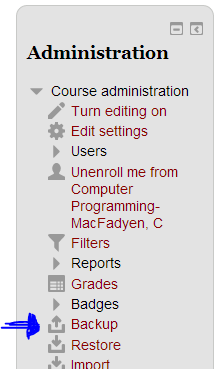
Moodle courses are backed up automatically twice a week, but there are times that you may want to perform a manual back-up (for example, if you want to save student work at the end of the term). To do this, click Backup in the Administration block. Follow the prompts.
IMPORTANT- in the 3rd step (see image below), when prompted to name the file, change from the default provided (this is because the default files get overwritten by the automated backups). Name it something like Intro-To-Art-Fall-2013.

Thursday, September 12, 2013
Removing/Adding students/colleagues in a Moodle course
Many teachers like to add colleagues as either editing or non-editing teachers. You may also notice that you occasionally have students in your Moodle classes who have dropped the course. It's a pretty quick process for you to manage enrollments yourself. Here's how:
REMOVING PEOPLE (Including yourself when you are not currently teaching a course):
Click Users...Enrolled Users in the Administration block.
Click on the X to the extreme right of the person you wish to remove (you can also remove yourself from a course you are not currently teaching*).

ADDING PEOPLE
Click Users...Enrolled Users in the Administration block.

Click on "Enroll Users."

Choose the role (Student, Non-editing teacher, etc.).
Type in the first few letters of the person's name in the search box.
Click Enroll.

Continue with others, as necessary, then click "Finished Enrolling."
Sunday, September 8, 2013
Moodle MOOC
CVU's upgrade to Moodle 2.5 has sparked interest among teachers in doing more with their pages. There are lots of resources for learning how to do more with Moodle, including http://moodle.org and yours truly. Now there's a MOOC (massive open online course). The course actually started Sept 1, but it's not too late to jump in.
Good reasons to try the MOOC:
- You'll learn Moodle in an actual Moodle course, giving you the student experience.
- You'll get to try a MOOC, which is a big trend in education (the New York Times called 2012 the "year of the MOOC" and more and more universities-- including Princeton, Stanford, and MIT-- are implementing them).
- You'll be interacting with teachers from around the world, developing your PLN (professional learning network).
- There's no commitment. Take as much or little from it as you want.
Here's the kick-off:
Sunday, September 1, 2013
Moodle 2 Tips
Here are some more tips for using Moodle 2
- Some people who have transferred over lots of resources from Moodle 1 are finding the drag and drop to be irritating when a resource or activity has to be moved a great distance. Here's a work-around. If you turn off JavaScript in your browser*, the drag and drop icon will turn into the up/down arrow icon. This allows you to click on the resource, then click on the destination . Much faster!
- When you create an assignment, you have the choice of on-line text (where students simply write text into the submission box) or file upload. In Moodle 1, these were separate types of activities. In any Moodle 2 assignment, you have the choice of either or both. For example, you may say to students "Either enter your response in the submission box or upload a file containing your response" or "Either paste in the link to your Google Presentation or upload your Powerpoint file."
- There is now a cut-off date for assignments. In the past, teachers struggled with setting due dates for assignments, because once the due date passed, the assignment would either go away (not accepting late submission) or would continue to show up (depending on the setting) as-- for example-- "128 days late." You can now set both a due date and a "cut-off date." Assignments can be submitted up to the cut-off date, and will be marked as late.
*Here's a screencast on how to disable JavaScript...
...and here are the steps (use the Chrome browser for this).
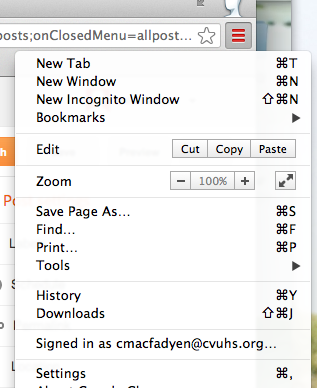
- Click on the three horizontal lines icon (or the wrench icon) on the upper right, then Settings.
- Scroll to the bottom and choose Advanced Settings.
- Under Privacy, click Content, then turn JavaScript off. Leave this tab open so you can come back and turn JavaScript back on when you're done moving things.
- Refresh the Moodle page and you'll see the different move icon (instead of a 4-headed arrow, you'll see up/down arrowheads).
Tuesday, August 20, 2013
How to change the names of "topics" in Moodle 2
In Moodle 2, you can change the name of "topics" (or sections), so that the actual names show in the navigation, rather than Topic 1, Topic 2, etc.
To do this, turn editing on and click on the settings gear under the topic name (it says "Edit Summary" when you hover over it). Deselect the box that says "use default section name." Enter the name you want and save.
Tuesday, August 13, 2013
Introducing Moodle 2
Dear teachers and students,
This first post is directed to teachers who want to start working on their courses. Here is what you need to know about what's changed. Please note that this will also be covered in the August in-service days:


Welcome to Moodle 2 at CVU!
This first post is directed to teachers who want to start working on their courses. Here is what you need to know about what's changed. Please note that this will also be covered in the August in-service days:

(click on screenshots to enlarge)
- You still turn editing on and off by clicking on the upper right. Turn editing on in order to add resources and activities to the course.
- You will notice an improved interface for adding activities and resources. For one thing, you don't need to know in advance whether what you want is an activity or resource. Just click on any of the choices for a description of it.
- You can now simply drag and drop a file into the Moodle course!
- You can now move activities and resource by clicking on the 4-pointed arrow tool and dragging and dropping.
- Moodle now has expandable and collapsible menus. Clicking on a right-pointing triangle will expand to more choices; clicking on an upward-pointing triangle collapses. This works in navigation as well as the editor.
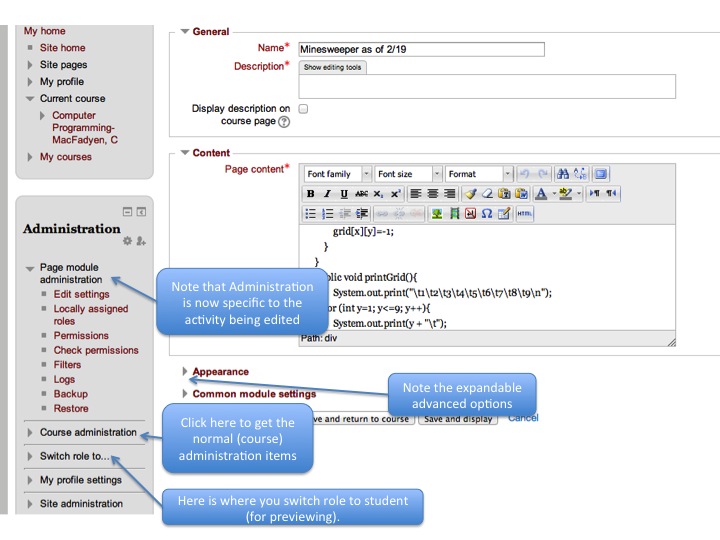
- In Moodle 1, the "Administration" block (where you enrolled students, changed settings for the course, looked at reports, etc.) was static. In Moodle 2, this block changes based on the context. For example, if you are editing an assignment or resource, the Administration block will contain items specific to that. You can always click on "Course Administration" to get back to the normal block.
- Moodle no longer has a file repository for each course. You will see your old files in a folder called "Legacy Files" if you had your course restored. However, going forward, when you upload a file, it is available to you everywhere (not just in that course).
Subscribe to:
Posts (Atom)