Showing posts with label image. Show all posts

Tuesday, December 4, 2018

Making graphics with Google Drawings

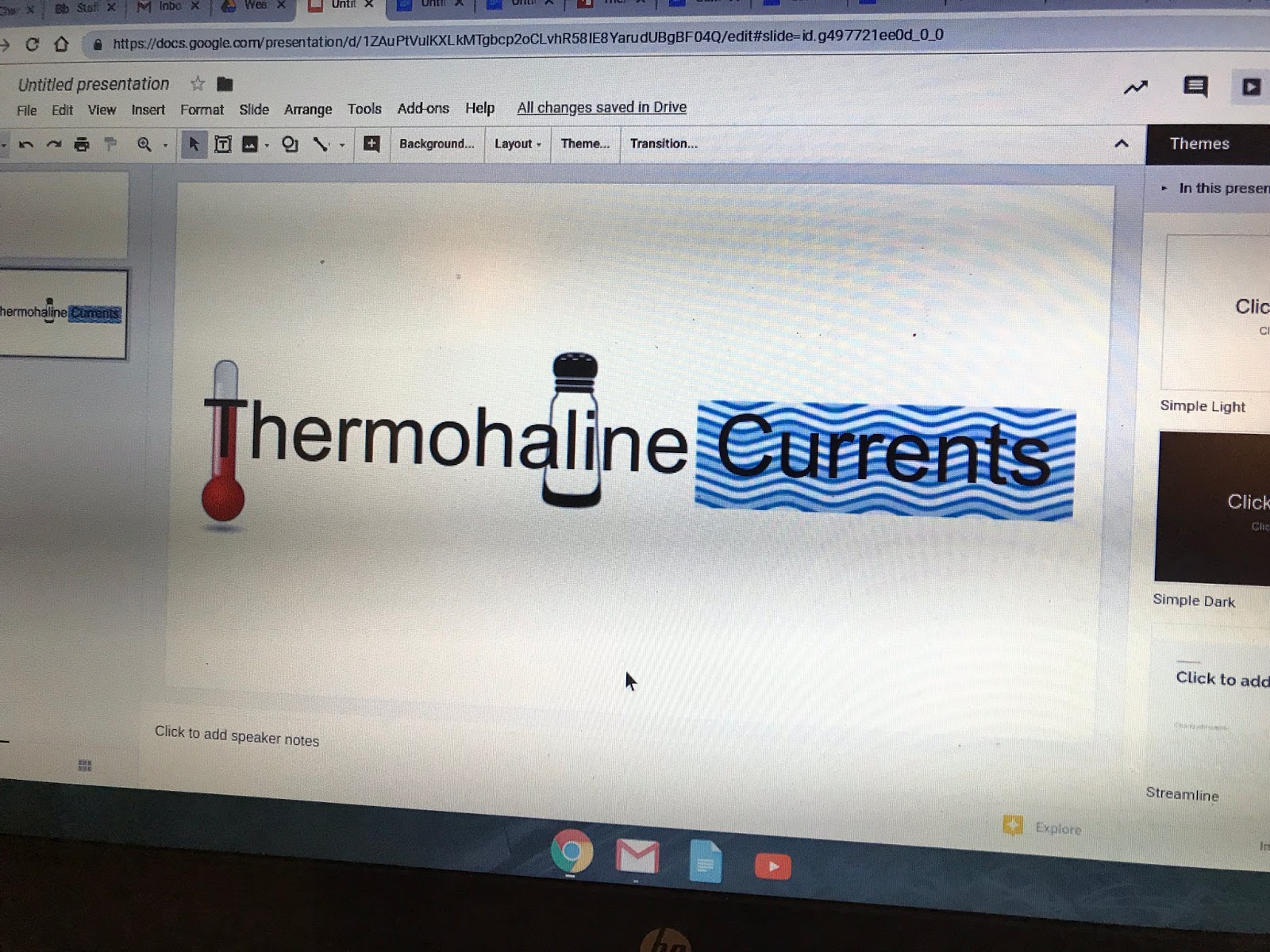
I was working with a teacher recently on creating illustrated text, to help students "see" what words meant.  We came up with this, for example:

The tool we used was Google Drawings.  While there are many tools available for graphics, Google Drawings is a great choice for combining images, text, shapes, and more.  It's also effective for making diagrams, such as flowcharts, where lines connecting shapes move along with their shapes.

Here's a graphic I made to demonstrate...
...and a screencast on how to use Google Drawings (showing how I made the image above).


Friday, February 2, 2018

Transparent backgrounds in images

In my last post, I mentioned that LucidChart can export images with transparent backgrounds.  Why are transparent backgrounds important?

Take a look at these two beach chairs. The bottom one has a transparent background; the top doesn't.  Against a white background, you can't see the difference. But change the background-- first to solid black, then to a beach scene-- and the distinction becomes clear.

So, how do you find images with transparent backgrounds?  In a Google image search, click on Tools..Color, and choose transparent (while you're there, you can apply additional filters, such as usage rights and image size).


Note that the file extension for transparent images is png (although not all png files are transparent).  Other types, such as jpg, gif, and tiff, do not support transparency.  In many applications, you are given an option of how to save images-- choose transparent png if don't want the white background.


Wednesday, March 27, 2013

ThingLink

Anne W-S shared a tool that could be great for you and your students.  ThingLink lets you upload (or link to) an image, then place different kinds of links that provide information about the picture.  Here's an example.  Try clicking on the different icons to see the types of links that are available.

Trying to decide which tool to use to comment on images?
VoiceThread works great if you want to be able to record your voice and/or work with multiple images.  It is collaborative-- the idea is to get many people talking about/commenting on the images.

ThingLink also allows for collaboration.  Rather than including spoken commentary, it is more about creating links. Like VoiceThread, images can be shared with the wider community.

Photostory (installed on all CVU computers) is more like VoiceThread, in that it involves recording a narration.  It is not collaborative, however-- typically, it's one person's story.  Sharing a PhotoStory requires some more steps, as it is not web-based.