In my post-Thanksgiving web browsing, I came upon Schooled in Tech, a helpful site with lots of tips for using Chromebooks and Google tools. Some of these I've shared myself previously, but this is a nice "go-to" spot for Chromebook use.
Learn how to use your Chromebook for video-conferencing, how to export your data, useful keyboard shortcuts, and more. There are also tips on using Microsoft Office 365.
Showing posts with label google drive. Show all posts
Showing posts with label google drive. Show all posts
Friday, November 23, 2018


Wednesday, August 29, 2018
Should you use Team Drive?
You've likely noticed Team Drive as an option within Google Drive. What is it...and should you use it?

Team Drives are meant for small teams who want to share files. The biggest difference in Team Drive is that files belong to the "team" rather than any one individual. This means that if the original "owner" of a file leaves the team, the file is not lost (nor can any individual delete the file).
Files in Team Drive can still be shared with others, as in "regular" Drive; however, folders cannot. Also, subfolders in Team Drive cannot have different privileges than the main folder. So, for example, you could not have a Science Department folder in team drive for all science teachers, and within that, a Biology folder for biology teachers only. You also can't choose to nest a Team Drive folder within folders in My Drive; they're always separate entities.
Because of this, my recommendation is to stick to "regular" Drive.
Please let me know if you have questions about this.Here's more info from Google.
Monday, April 9, 2018
Commenting on PDFs in Google Drive
You can now add comments to a PDF (that you own or have editing rights to) stored in Google Drive.
Here's a one-minute "how-to" video.
Here's a one-minute "how-to" video.
Tuesday, September 19, 2017
Putting one Google doc in multiple folders
Have you ever been torn between whether a particular document should go in one folder vs another? Perhaps you have a doc that should go in your W3 folder but would make just as much sense to go in your Writing folder.
The good news is that you can put the doc in both folders. Here's how:

The good news is that you can put the doc in both folders. Here's how:
- Open Google Drive (not Google Docs for this-- Drive is the organizational app).
- Click on the file to select it (don't actually open it). You can even select multiple files with Ctrl-click, if desired.
- Press Shift-Z.
- You will then be asked where you want to add the file. This is not the same as Move To.., because you're not moving it.
- Note that this does not make a copy of the file. It's the exact same doc; you can open and edit it from any of its folders.

Wednesday, November 16, 2016
What's this about G Suite?
In case your were wondering... G suite is the new name for Google Apps (Docs, GMail, Calendar, Drive, etc.). Same tools, new name. Time to add a new tag to the blog!
Tuesday, October 6, 2015
Google Workshop Screencast
For those of you unable to attend the Google Workshops last week, I've put together a screencast of the presentation.
Here's a table of contents so you can skip ahead (that I created using a tool called Videonot.es thanks to Sarah Strack for the tip!):
0:40 Part 1- Using Templates in Google Slides and Docs
3:35 Part 2- Migration to cssu.org-- remaining issues (YouTube, Google Plus and Chrome logins)
4:27 Part 3- Using 3rd-party applications with Google Drive (it's more than Google Docs!)
I'd love to hear any questions or comments or to help you get started or move forward with any of this!
Thanks for reading,
Here's a table of contents so you can skip ahead (that I created using a tool called Videonot.es thanks to Sarah Strack for the tip!):
0:40 Part 1- Using Templates in Google Slides and Docs
3:35 Part 2- Migration to cssu.org-- remaining issues (YouTube, Google Plus and Chrome logins)
4:27 Part 3- Using 3rd-party applications with Google Drive (it's more than Google Docs!)
I'd love to hear any questions or comments or to help you get started or move forward with any of this!
Thanks for reading,
Monday, September 28, 2015

Saturday, September 5, 2015
New templates in Google Slides (Presentations) and Sheets, too!
 |
| image from pixabay.com |
There are templates for things like calendars and monthly budgets (in Sheets) and science projects (in Slides).
Check them out at:
https://docs.google.com/presentation/u/0/
and
https://docs.google.com/spreadsheets/u/0/
Friday, March 27, 2015
Searching Google Drive by e-mail address
Are you trouble searching for a document by the owner's e-mail address in Google Drive?

This seems to be an issue that has arisen recently. Nick offers this solution-- To search by an owner's email address, use owner:email.address (no space between the colon and the address) So, for example, try searching for owner:bknowles@cvuhs.org for any of Beyonce's documents (you may not know her-- she's new here ;).
Wednesday, January 21, 2015
What's up with Google Drive, Docs, Sheets, Slides?
Remember when Google Docs became Google Drive? You probably have noticed that there is now both Drive and Docs (and Slides and Sheets). You may have also seen that there are now icons for each of these when in the App Launcher (which pushes Groups down into the "More" category, by the way). To cut through any confusion, here's the logic of it:

Think of Google Drive as a storage location. Just like the G:/ drive here at school or a USB drive that you store files on. Google Drive can store any kind of file-- not just Google Docs. So, you can upload pictures, video, PDF, Word and Powerpoint files, etc. to make them available in the cloud.
Google Docs, Sheets, and Slides (formerly Presentations) are now three separate apps. You can still access and/or create any of these kinds of documents through Drive, if desired. If you use a mobile device (iPad, Android, etc.) you'll notice that there are separate apps there, as well.
I hope that helps. Please let me know if you have any questions!
Google Docs, Sheets, and Slides (formerly Presentations) are now three separate apps. You can still access and/or create any of these kinds of documents through Drive, if desired. If you use a mobile device (iPad, Android, etc.) you'll notice that there are separate apps there, as well.
I hope that helps. Please let me know if you have any questions!
Friday, October 31, 2014
The dreaded "You need permission" in Google docs
We've all had the experience when someone sends you the link to a document, you click to open it, and...

(cue sad trombone music)
If you're a teacher whose students send you links to Google documents, you can avoid this problem by setting up shared folders. I posted last fall about how shared folders work. Once the folder is shared, any document created in that folder (or added to the folder), is automatically shared in the same way.
There are several ways to accomplish this:
- Have students create the folders manually and share them with you.
- Create the folders yourself and share with each student.
- Use a tool like GClassFolders (I used this with class today and it went great) or Doctopus.
The advantage of method #3 is that the folders are all created with a uniform naming convention and placed in a larger folder for ease of access. The teacher is the owner of each folder, with each student being an editor of the appropriate folder.
I'd be happy to help you set this up. It only takes a few minutes!
Wednesday, September 17, 2014
Saving WeVideo to Google Drive
WeVideo is a great web-based video editor that connects with Google Drive (here's an earlier post about it). Here are some tips on saving (and sharing) videos you create in Google Drive
- Before starting to use WeVideo, go to Google Drive, click Create, then Connect More Apps. Search for WeVideo and add it.
- You can now start a new video project by going to Google Drive, Create, and choosing WeVideo. As you work on WeVideo projects, the project files will be conveniently saved in Google Drive (see the last pic below).
- When you are ready to share your final product…
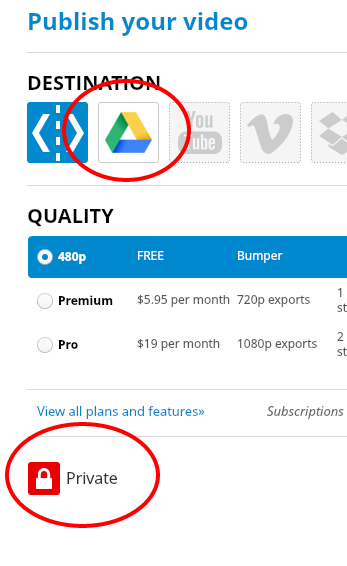
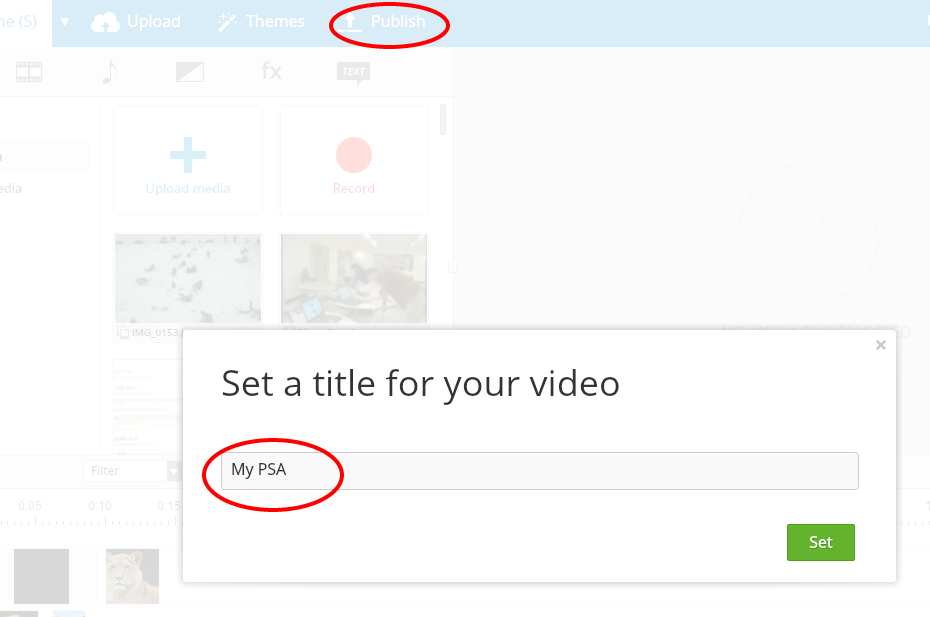
- Click Publish and give it a title.
- Click the Google Drive icon. Also, change visibility to private. Publish.
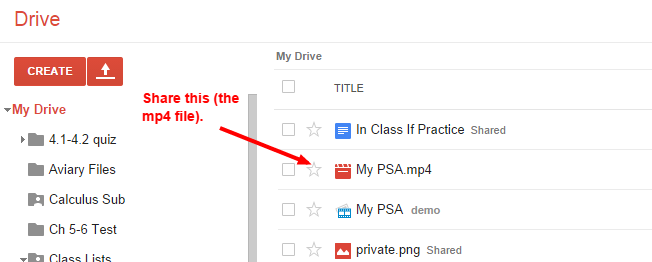
- You will now see the finalized video in your Drive. The format will be mp4. Note that this is different from the project file. Share the video as you would any Google Doc. You will get a URL that you can e-mail, post to Moodle, etc.
Note that you get up to 15 minutes of download time per month. This is usually plenty, but it’s best not to publish until you’re confident that the video is in final form. Note that the other “My PSA” file above (the one that doesn’t say mp4) is the WeVideo project file (that can still be edited).
Tuesday, September 16, 2014
Google Drive, Docs, Sheets, Slides
You have probably noticed that Google now has separate apps for Drive, Docs, Sheets, and Slides. Nick fixed the link in Moodle and updated the icons, however it's possible that you may end up in a strange place wondering what happened to Drive. So, here's what you need to know:
Google Drive is where you will find all of your documents, whether they're Google text documents (Docs), presentations (Slides), spreadsheets (Sheets), forms, or any other type of file (remember-- you can use Google Drive to store and share any kind of file. In fact, the video below is stored in--and shared from-- Google Drive).
If you have GMail (or any other Google app) open, you can use the App Launcher (3 x 3 icon) to get to Drive. If you end up in the Docs app and want to get to Drive, use the menu in the upper left. Below is a 50-second video explaining this.
The information in the video is still accurate, although you can now use the new Drive icon.
Google Drive is where you will find all of your documents, whether they're Google text documents (Docs), presentations (Slides), spreadsheets (Sheets), forms, or any other type of file (remember-- you can use Google Drive to store and share any kind of file. In fact, the video below is stored in--and shared from-- Google Drive).
If you have GMail (or any other Google app) open, you can use the App Launcher (3 x 3 icon) to get to Drive. If you end up in the Docs app and want to get to Drive, use the menu in the upper left. Below is a 50-second video explaining this.
The information in the video is still accurate, although you can now use the new Drive icon.
Thursday, June 12, 2014
Adding Google Docs to Multiple Folders
Q: Can I add a single Google Doc to more than one folder?
A: Yes! Rather than dragging the file into a folder, check the box next to the file, then click the folder icon at the top. Hold down the Ctrl key (Windows) or Command key (Mac) as you check each folder to add the doc to.

Note that you are not making copies of the file when doing this. It is the same document going into each folder, so any changes you make in one place will carry over to the others.
A: Yes! Rather than dragging the file into a folder, check the box next to the file, then click the folder icon at the top. Hold down the Ctrl key (Windows) or Command key (Mac) as you check each folder to add the doc to.
Note that you are not making copies of the file when doing this. It is the same document going into each folder, so any changes you make in one place will carry over to the others.
Friday, May 9, 2014
Using Shared Folders in Google Drive
How can I create a folder that all students in my class can access (and contribute to)?
(note-- after writing this post, it dawned on me that I had already written a very similar post back in October! I'm posting this one, anyway, as it has more detailed step-by-step, but here's a link to the older post-- which includes a screencast and a link to GClassFolders, a more sophisticated tool for creating shared folders in Drive).
This is easy to do in Google Drive. Once you create and share the folder, any files added to the folder are shared, as well.


4. In the screen that pops up, you have two options:


(note-- after writing this post, it dawned on me that I had already written a very similar post back in October! I'm posting this one, anyway, as it has more detailed step-by-step, but here's a link to the older post-- which includes a screencast and a link to GClassFolders, a more sophisticated tool for creating shared folders in Drive).
This is easy to do in Google Drive. Once you create and share the folder, any files added to the folder are shared, as well.
To do this:
1. Go to Google Drive, click Create... Folder
2. Name it
3. Once the folder is created, find it in My Drive, click on it, and click the Share icon (the person with the + sign).
4. In the screen that pops up, you have two options:
- If you want the folder to be visible to your students, you can change Private to Anyone with the link. Then just provide the link to your students (for example, on your Moodle page).
- If you want to invite only your students and/or allow students to add files to the folder, paste in their e-mail addresses where it says Invite people.
- You can tell which folders are shared by the person inside the folder icon.
Wednesday, April 9, 2014
PowerPoints in Google Drive
As you probably know, two popular choices for presentations are Google Presentations and Microsoft PowerPoint. Google Presentations are great because they are so easy to collaborate on and share. One reason that you might use PowerPoint,. however, would be if you needed to incorporate sound or advanced animations in the presentation. The question then is, how do I share my PowerPoint?
Answer: you can use Google Drive to store and share PowerPoints, without converting them into Google Presentations. So, if you have a PowerPoint that has embedded sound or other special elements that aren't available in Google Presentations, here's how you can share them:
 1. Open Google Drive and click on the Settings icon (looks like a gear).
2. From there, choose "Confirm settings before each upload" as shown.
You will only need to this once and the settings will stick.
3. Click the upload icon to upload your PowerPoint.


 5. You can now share the file as you would any Google doc. For the people on the other end to have the full effect (including sound, for example), they will need to download it, using the arrow icon shown.
Answer: you can use Google Drive to store and share PowerPoints, without converting them into Google Presentations. So, if you have a PowerPoint that has embedded sound or other special elements that aren't available in Google Presentations, here's how you can share them:
2. From there, choose "Confirm settings before each upload" as shown.
You will only need to this once and the settings will stick.
4. Find your file and upload it. You will get the message shown below. Do not check the box that says "Convert documents..."
5. You can now share the file as you would any Google doc. For the people on the other end to have the full effect (including sound, for example), they will need to download it, using the arrow icon shown.Tuesday, April 1, 2014
Sharing video from your phone or tablet
Frustrated with trying to email video to yourself, only to have it broken up into small clips?
There’s a better way!
Use Google Drive.
Uploading:
- To sign into Drive with your school Google account, see IT to set your password (if you haven’t already). You can also use a personal Google account.
- In the Drive app, click the + sign to upload.
- Choose the video from your Camera Roll.
Sharing:
You can share right from the app, but only with specific people (to do this, click on the grey “i” icon, then Sharing).
If you want to share with “anyone with the link” (which is how I prefer to do it), just hop on a computer, log into Google Drive and do it from there.

Remember-- you can store and share any kind of file in Google Drive. One nice thing about putting video there is that it plays right in the browser (just like YouTube).
Questions? See Charlie in 127 or cmacfadyen@cvuhs.org
Tuesday, March 11, 2014
Google Docs introduces add-ons!
Do you wish you could track changes in Google Docs like you can in Word? Would you like the ability to add voice comments to a Google Doc? Or write music inside the doc?
Now you can. Google Docs has introduced add-ons. Next time you have a (text) document open in Drive, look for the new menu. Check out the options. I'd recommend starting with Kaizena and Track Changes. I'd love to know what people find. Please share!
Now you can. Google Docs has introduced add-ons. Next time you have a (text) document open in Drive, look for the new menu. Check out the options. I'd recommend starting with Kaizena and Track Changes. I'd love to know what people find. Please share!
Wednesday, December 18, 2013
What happened to the Template Gallery in Google Drive?
I was just trying to create a document from something that I knew was in the Template gallery (it was a requisition). It reminded me that Google has removed "From Template" as a choice when you click "Create." Pretty annoying, but here are two work-arounds:
- (The official way) When you actually open a Google Doc and click the File menu, you will now see the choice to create "From template" at the bottom. If you are trying to upload to the Template Gallery, this same approach will get you there.

- (The "this might be easier" way) If you've used the template before (say, filled out a Field Trip request or requisition), it may be easier to simply search for the doc you created earlier, make a copy of it and just change what needs changing.

Here's hoping that Google will add the old functionality back soon!
Saturday, December 14, 2013
Google Workshop December, 2013
If you weren't able to attend the "What's New With Google" workshop this week, I've created a
 screencast that summarizes it. I couldn't keep it down to my usual length (it's about 12 minutes), so I've created an index that will allow you to fast-forward, if desired.
0:00 Downloading attachments in GMail (understanding the icon that now appears)
2:03 Doctopus-- a script that automates sharing a template with students and keeping track of their work. Dave E has used this successfully with his students.
4:15 Chrome- doing more with Google's Chrome broswer
5:06 Chrome- using apps and extensions in Chrome
8:18 Chrome Store- adding apps and extensions to Chrome
I hope it's helpful. Let me know if I can support you in trying out any of these ideas.
Update 12/17: Here's a nice selection of educational Chrome apps I found today-- http://google.apps.sparcc.org/resources/web-apps
0:00 Downloading attachments in GMail (understanding the icon that now appears)
2:03 Doctopus-- a script that automates sharing a template with students and keeping track of their work. Dave E has used this successfully with his students.
4:15 Chrome- doing more with Google's Chrome broswer
5:06 Chrome- using apps and extensions in Chrome
8:18 Chrome Store- adding apps and extensions to Chrome
I hope it's helpful. Let me know if I can support you in trying out any of these ideas.
Update 12/17: Here's a nice selection of educational Chrome apps I found today-- http://google.apps.sparcc.org/resources/web-apps
Subscribe to:
Posts (Atom)