Showing posts with label microsoft word. Show all posts

Wednesday, January 10, 2018

Office 365

As I mentioned at the last faculty meeting, we now have Office 365 available to all students and faculty.   Here is some info about Office 365.

What?

Online version of Word, PowerPoint, Excel.  You can open documents from others or create your own.  Most features are included, but not all (for example, there is no sound in PowerPoint-- for that, you would still need the installed version of ppt).

Uses "OneDrive" to save documents.  OneDrive is to Microsoft as Google Drive is to Google-- where all your Office 365 documents are stored.  It has a "Shared With Me" area just like Google Drive.  While you can share with others, the real-time collaboration not as good as Google.

Why?

Gives you and students choice.  Office tools are widely used. You may have a Word document or PowerPoint slides from another institution, for example, that you would like to edit in Word.  Now you can.

How?

Get account passwords from IT or Charlie.

What about G Drive/ G Suite?

Google Apps will still be the tools you use most.  They're the best for collaboration.

Tuesday, June 2, 2015

"Refrigerator Magnets" in Microsoft Word

Kathleen Gibbs' class was creating "found poems" and wanted a way to manipulate text.  This is a perfect application of technology.  I created a template in Microsoft Word that is comprised of text boxes that have no borders, can be moved and placed on top of one another, and can be re-sized and rotated (somewhat like those refrigerator magnets that people arrange into poems).

Here is what one student did with it (using text from One Flew Over The Cuckoo's Nest):
Would you like to try this with your students?  I can't attach the template file here, but I will do so in a post to the faculty & staff forum.

Tuesday, May 26, 2015

Checking spelling

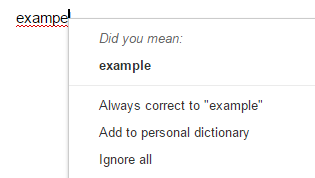
What do you do when word processing software incorrectly "corrects" your spelling?  Here are some tips on customizing the spell checker in Google Docs.  Other word processors have similar functionality.

*One note about spelling before we continue--  you should never rely entirely on software for correct spelling (and other GUM, for that matter).  When in doubt, look it up! 

As you type, Google Docs will underline misspelled words in red (you can also activate spell check from the Tools menu).  Right-click to see the suggestion.  If you ignore the suggested spelling, Google Docs will then accept your spelling of the word (as well as any future use within the same doc).  If you choose "Add to personal dictionary," if will ignore that spelling in all other docs, as well.


You can also add words to your Personal Dictionary directly (or remove them, if Google Docs is making incorrect "corrections").  To review, add or remove words, go to Tools-- Personal Dictionary...

In the screenshot below, you can see that my job title ("integrationist") is not a word that Google was happy with (actually, as I write this, Blogger is underlining it, too!), so I've added it to my dictionary.


You can also go to Tools--Preferences, where you can set automatic substitutions.  In the screenshot below, you can see that "highschool" will automatically become "high school,"  for example.


Tuesday, March 11, 2014

Google Docs introduces add-ons!

Do you wish you could track changes in Google Docs like you can in Word?  Would you like the ability to add voice comments to a Google Doc?  Or write music inside the doc?

Now you can.  Google Docs has introduced add-ons.  Next time you have a (text) document open in Drive, look for the new menu.  Check out the options.  I'd recommend starting with Kaizena and Track Changes.  I'd love to know what people find.  Please share!


Monday, February 18, 2013

Windows 7 Snipping Tool

If you haven't discovered the Snipping Tool in Windows 7, it's worth checking out.  The Snipping Tool allows you to capture any portion of your screen, so you can then insert the image into a document  (for you Mac users, you can accomplish the same thing using Command + Shift + 4).  I have used the tool here to give you the idea* (and to show you where to find it):


You can add annotations-- such as the red arrow above.
The image is automatically copied into your clipboard, so you can paste it where needed.  You can also save the image for future use.

Teachers and students can use this tool to incorporate screen captures into text documents and presentations.


*note that capturing an open menu (as in my example) is a little trickier.  Here are the steps (from the Microsoft site):


  1. Open Snipping Tool by clicking the Start button Picture of the Start button, clicking All Programs, clicking Accessories, and then clicking Snipping Tool.
  2. Press ESC, and then open the menu that you want to capture.
  3. Press CTRL+PRINT SCREEN.
  4. Select the type of snip you want, and then capture the menu.


Wednesday, October 31, 2012

What's new in Office 2010

Here are two features available in Microsoft Office 2010 that may be helpful to you:

1) Screen Shots- you can now add images of your computer screen to Word, Powerpoint, and other Office docs. This is useful if you are doing a "how-to," for example, and you want to show students exactly what they should be seeing when they complete a particular step in a process. Go to Insert..Screen Shot. You will then be given thumbnails of all open windows. Click on the one you want and an image will be inserted.
Here's a video on how to do it:
http://www.youtube.com/v/21phJ6pk5UE

2) YouTube in Powerpoint- you can now embed video from YouTube (and other streaming video sites) into Powerpoint. For YouTube, first find the video you want. Click on Share, then Embed, and check the box that says "Use old embed code" (you\'ll know the code is correct if it starts with object, rather than iframe). Copy that code. Back in Powerpoint, click Insert..Video..Video from Web site, and paste the code into the dialog box that appears.
Important Note- the video will only play on computers running Office 2010 (all computers at CVU). If you want students to watch at home, this is NOT a good choice.
http://www.youtube.com/watch?v=QI0e4WDuTBA

(originally posted 10/20/11)